

(→Step 6) |
|||
| (25 intermediate revisions by 2 users not shown) | |||
| Line 1: | Line 1: | ||
| − | With the updates Crystal Source code has been | + | <big>Getting Started - Build Guide</big> |
| + | |||
| + | Description: | ||
| + | |||
| + | With the updates Crystal Source code has been receiving, the Guide's for building the source and compiling them have become outdated which has led to a lot of confusion and help being requested. | ||
This guide will be a complete step by step guide from downloading visual studio to launching into your server. | This guide will be a complete step by step guide from downloading visual studio to launching into your server. | ||
| + | Also make sure you download all the files within this repo - https://github.com/JevLOMCN/BlackScreenIssues | ||
==Step 1== | ==Step 1== | ||
===Downloading Visual Studio 2022=== | ===Downloading Visual Studio 2022=== | ||
| Line 12: | Line 17: | ||
https://www.lomcn.net/wiki/images/4/4a/1.png | https://www.lomcn.net/wiki/images/4/4a/1.png | ||
https://www.lomcn.net/wiki/images/f/fb/2.png | https://www.lomcn.net/wiki/images/f/fb/2.png | ||
| − | |||
If you can't find this window head over to Tools > Get Tools and Features | If you can't find this window head over to Tools > Get Tools and Features | ||
| Line 86: | Line 90: | ||
Open your Client folder that's located in Crystal Mir 2 (Not the build folder) | Open your Client folder that's located in Crystal Mir 2 (Not the build folder) | ||
| + | |||
| + | |||
| + | Open the Mir2Test.ini | ||
| + | |||
| + | [Launcher] | ||
| + | |||
| + | Enabled=True | ||
| + | |||
| + | Host=https://mirfiles.com/resources/mir2/crystal/patch/ | ||
| + | |||
Now open the Client.exe | Now open the Client.exe | ||
https://www.lomcn.net/wiki/images/1/1e/16.png | https://www.lomcn.net/wiki/images/1/1e/16.png | ||
| + | |||
| + | [Launcher] | ||
| + | Enabled=True | ||
| + | Host=https://mirfiles.com/resources/mir2/crystal/patch/ | ||
This will now open the Client which will download all the required base files for your client. | This will now open the Client which will download all the required base files for your client. | ||
| Line 112: | Line 130: | ||
https://www.lomcn.net/wiki/images/b/ba/19.png | https://www.lomcn.net/wiki/images/b/ba/19.png | ||
| − | Change EnforceDBChecks=True > EnforceDBChecks=False and ignore Step 7. | + | Change EnforceDBChecks=True > EnforceDBChecks=False and ignore Step 7. (!!Downloading a database is highly recommended!!) |
==Step 7== | ==Step 7== | ||
===Downloading a Database=== | ===Downloading a Database=== | ||
| − | Head over to Github Suprcode Database Releases | + | Head over to [https://github.com/Suprcode/mir2-database/releases Github Suprcode Database Releases] |
| + | |||
| + | Download the latest Release. | ||
| + | |||
| + | https://www.lomcn.net/wiki/images/0/07/20.png | ||
| + | |||
| + | Once downloaded Open the .rar and drag the files/folder into your Server folder inside Crystal Mir 2 Folder. | ||
| + | |||
| + | https://www.lomcn.net/wiki/images/7/71/21.png | ||
| + | |||
| + | Click 'Replace the files in the destination' | ||
| + | |||
| + | https://www.lomcn.net/wiki/images/7/75/22.png | ||
| + | |||
| + | Note: Copy over the maps from the Server's Map folder to the Client's Maps folder. | ||
| + | |||
| + | ==Step 8== | ||
| + | ===Getting Online=== | ||
| + | |||
| + | You have two options. Local Server or Ported Server. | ||
| + | |||
| + | If you want a Ported Server (Allow others to join) please follow the steps in the [https://www.lomcn.net/forum/threads/port-forwarding.106595/ Port Forwarding Tutorial] | ||
| + | |||
| + | Alternatively for a Local Server: | ||
| + | |||
| + | Open your Client Folder and open Mir2Test.ini | ||
| + | |||
| + | https://www.lomcn.net/wiki/images/7/7a/23.png | ||
| + | |||
| + | Change | ||
| + | [Network] | ||
| + | UseConfig=False | ||
| − | |||
| + | To | ||
| + | |||
| + | |||
| + | [Network] | ||
| + | |||
| + | UseConfig=True | ||
| + | |||
| + | IPAddress=127.0.0.1 | ||
| + | |||
| + | Port=7000 | ||
| + | |||
| + | |||
| + | Note: For a local Server you do not need to adjust any Server IP as this is defaulted to 127.0.0.1 | ||
| + | |||
| + | Now Launch your Server and Client! | ||
| + | |||
| + | ==Step 9== | ||
| + | ===Admin account creation=== | ||
| + | |||
| + | When your server is fully loaded Press Account | ||
| + | |||
| + | https://www.lomcn.net/wiki/images/2/24/24.png | ||
| + | Now Press Create | ||
| + | https://www.lomcn.net/wiki/images/a/a9/25.png | ||
| + | Give your account an ID | ||
| + | & | ||
| + | Set a password | ||
| − | + | Now Uncheck Require Change | |
| + | & | ||
| + | Check Administrator | ||
Latest revision as of 06:23, 20 January 2025
Getting Started - Build Guide
Description:
With the updates Crystal Source code has been receiving, the Guide's for building the source and compiling them have become outdated which has led to a lot of confusion and help being requested.
This guide will be a complete step by step guide from downloading visual studio to launching into your server.
Also make sure you download all the files within this repo - https://github.com/JevLOMCN/BlackScreenIssues
Step 1
Downloading Visual Studio 2022
Download VS Community 2022 using the following link - Visual Studio
Once VS is downloaded, Open it up and download the following WorkLoads:
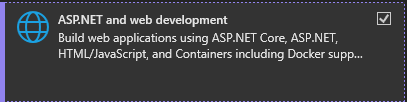
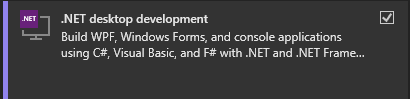
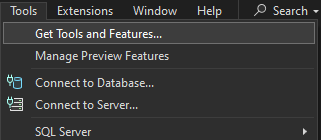
If you can't find this window head over to Tools > Get Tools and Features
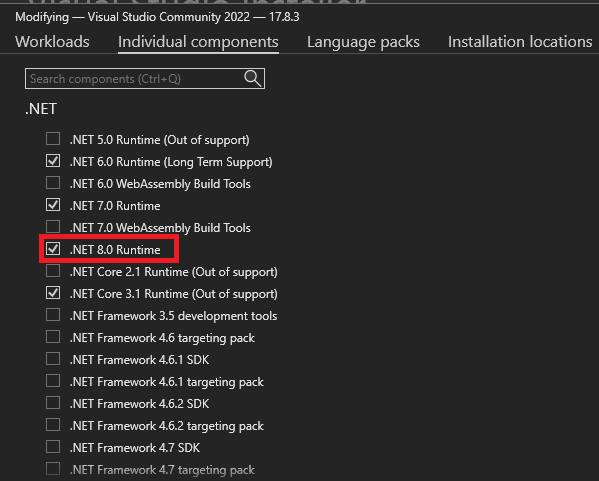
Select Individual Components and Select .Net 8.0 Runtime
Step 2
Downloading the Latest Source Code
Head over to github.com/Suprcode/mir2
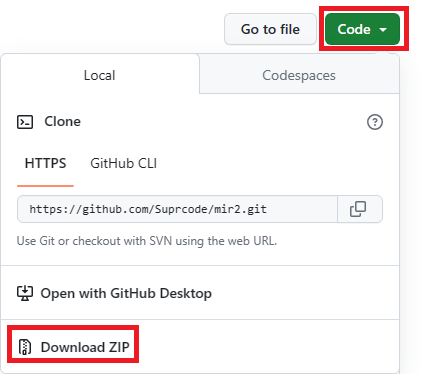
Once this is downloaded head over to your Desktop and create a new folder called Crystal Mir 2.
Open up your mir2master.zip from your downloads folder and drag the folder into the Crystal Mir 2 folder located on your desktop.

Step 3
Building the code
Open up Legend of Mir.sln located in your Crystal Mir 2 > mir2-master
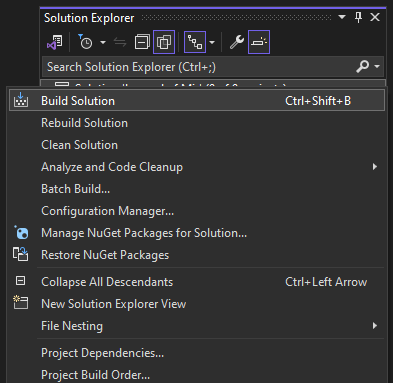
Right click Solution 'Legend of Mir' (9 of 9 projects)
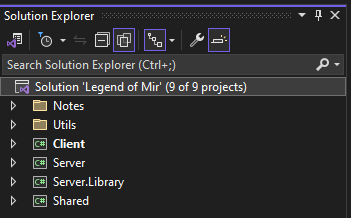
Click Build Solution
Encounting this error?

If so head over to Visual Studio Couldn't process file fix to fix these errors, Then repeat Step 3.
Step 4
Creating the folders we need
Open Crystal Mir 2 Folder and create the following empty directories.
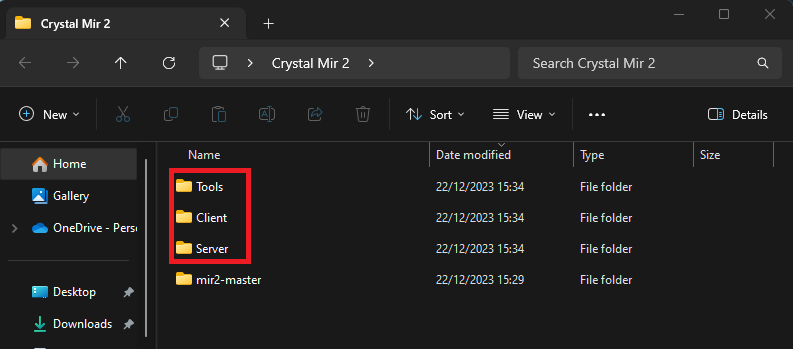
Now open your mir2-master folder and open the Build Folder.
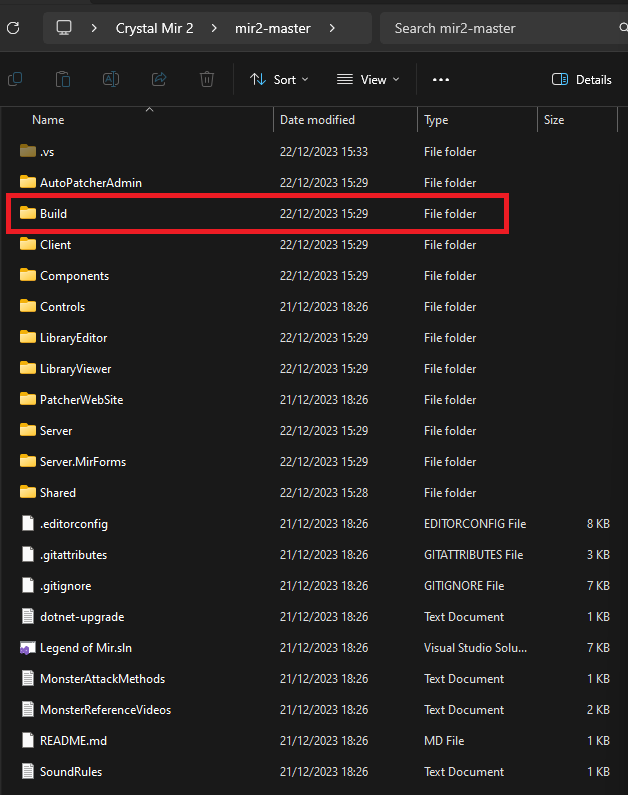
You should now see these three directories:
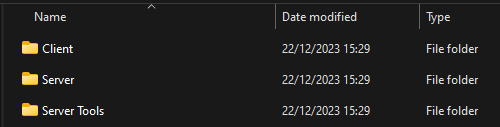
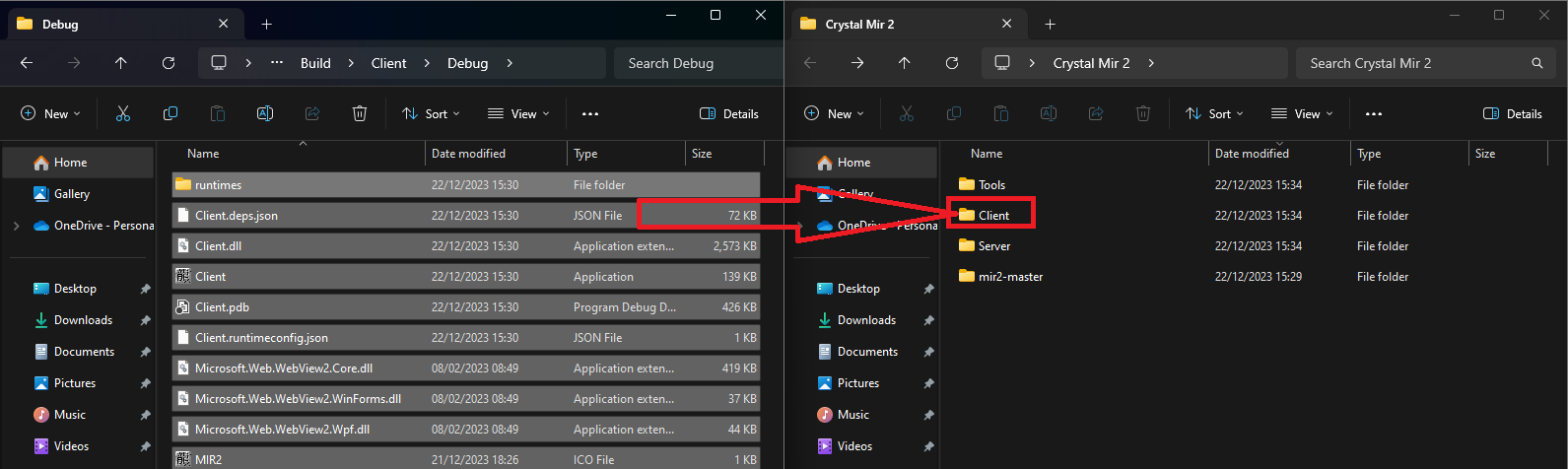
Open the Client folder then open the Debug folder.
Copy all of these files into your Client folder located in Crystal Mir 2 > Client
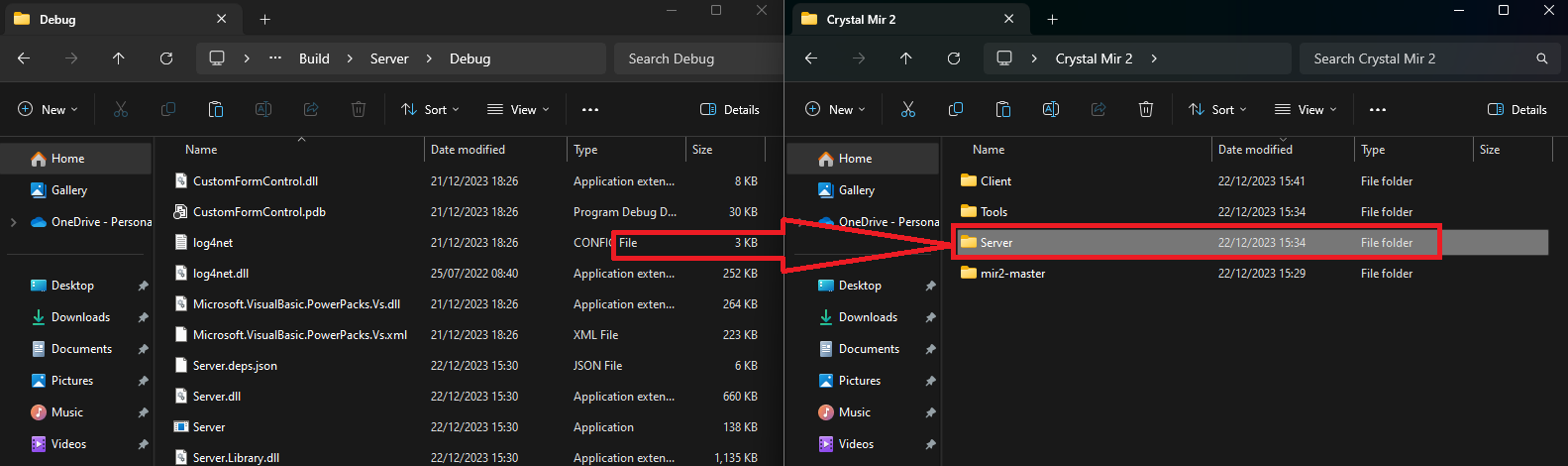
Repeat this with the Server Folder located in the Build folder, copy all those files into the Crystal Mir 2's Server folder.
Step 5
Patching the Client
Open your Client folder that's located in Crystal Mir 2 (Not the build folder)
Open the Mir2Test.ini
[Launcher]
Enabled=True
Host=https://mirfiles.com/resources/mir2/crystal/patch/
Now open the Client.exe
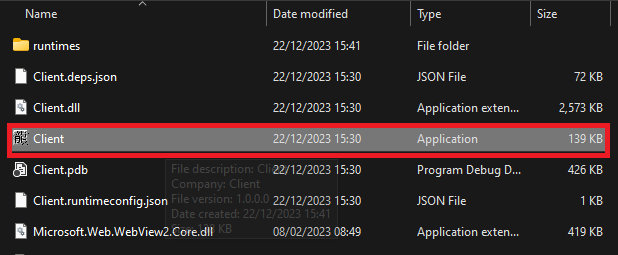
[Launcher] Enabled=True Host=https://mirfiles.com/resources/mir2/crystal/patch/
This will now open the Client which will download all the required base files for your client.
Step 6
Starting the server
Open your server.exe in Crystal Mir 2 > Server (Not the build folder)
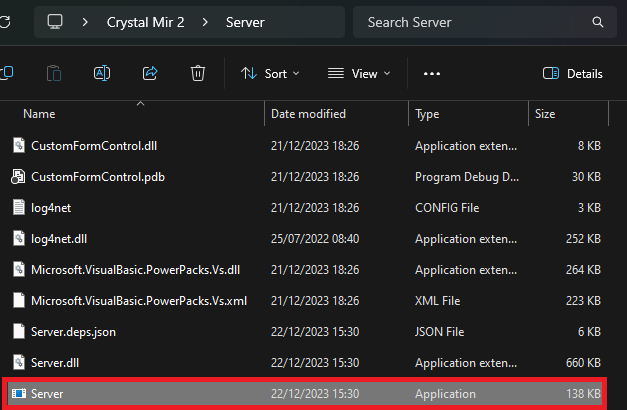
This will now create all the required files for the Server.
You will now see the Server with the following error:
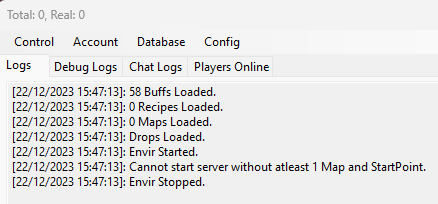
- If you would like to Download a pre-made database, go straight to Step 7.
- If you would like to start your server with no database (Create your own) then close your server down and open Setup.ini located in Crystal Mir 2 > Server > Configs
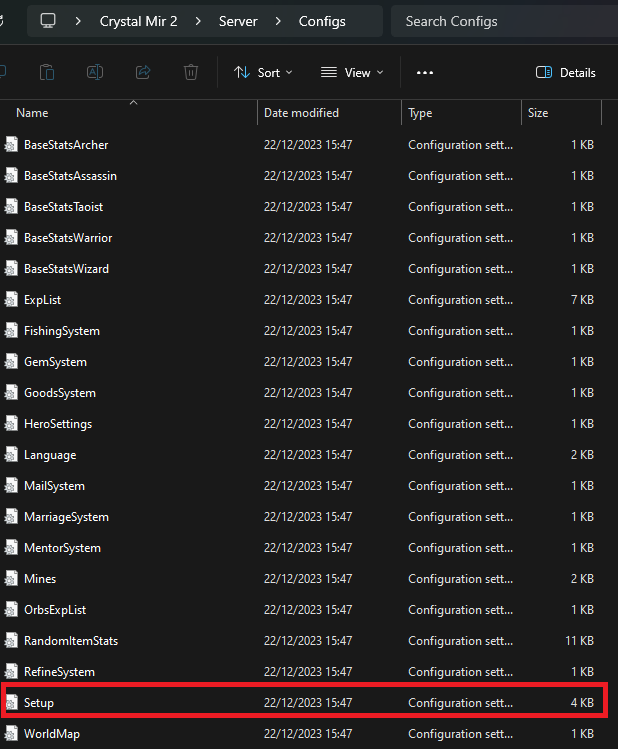
Change EnforceDBChecks=True > EnforceDBChecks=False and ignore Step 7. (!!Downloading a database is highly recommended!!)
Step 7
Downloading a Database
Head over to Github Suprcode Database Releases
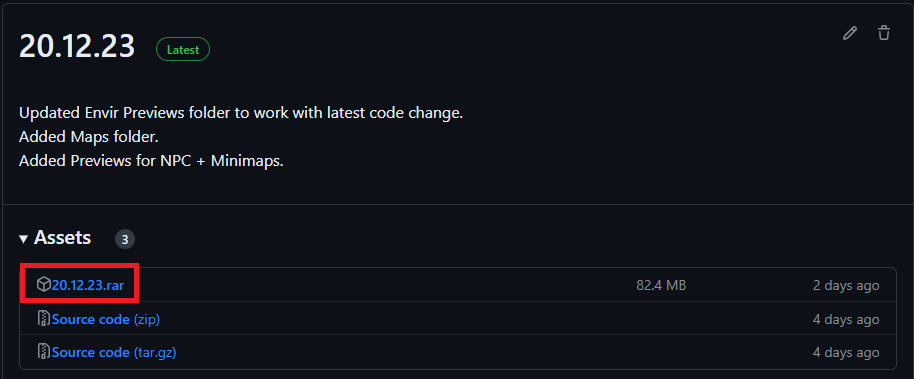
Download the latest Release.
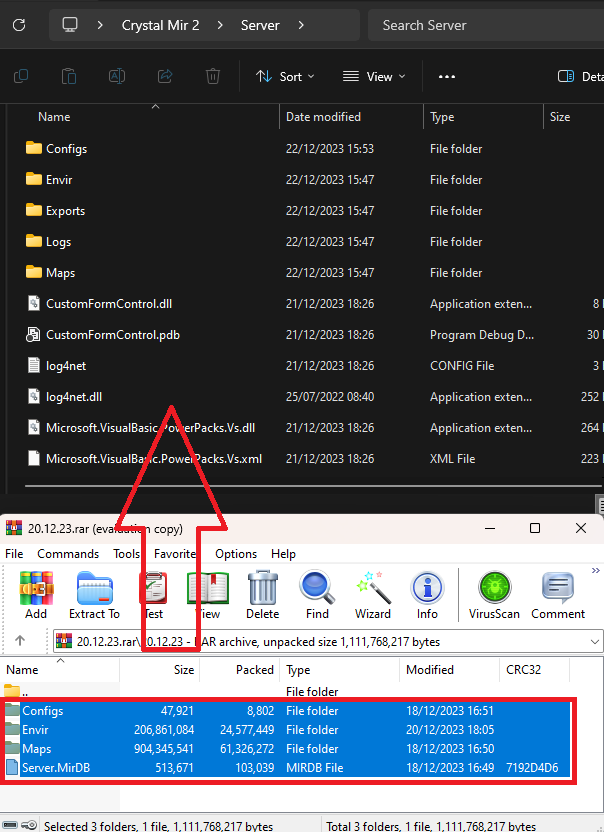
Once downloaded Open the .rar and drag the files/folder into your Server folder inside Crystal Mir 2 Folder.
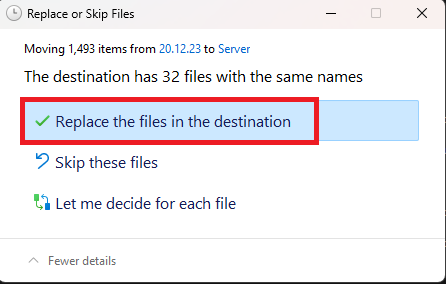
Click 'Replace the files in the destination'
Note: Copy over the maps from the Server's Map folder to the Client's Maps folder.
Step 8
Getting Online
You have two options. Local Server or Ported Server.
If you want a Ported Server (Allow others to join) please follow the steps in the Port Forwarding Tutorial
Alternatively for a Local Server:
Open your Client Folder and open Mir2Test.ini
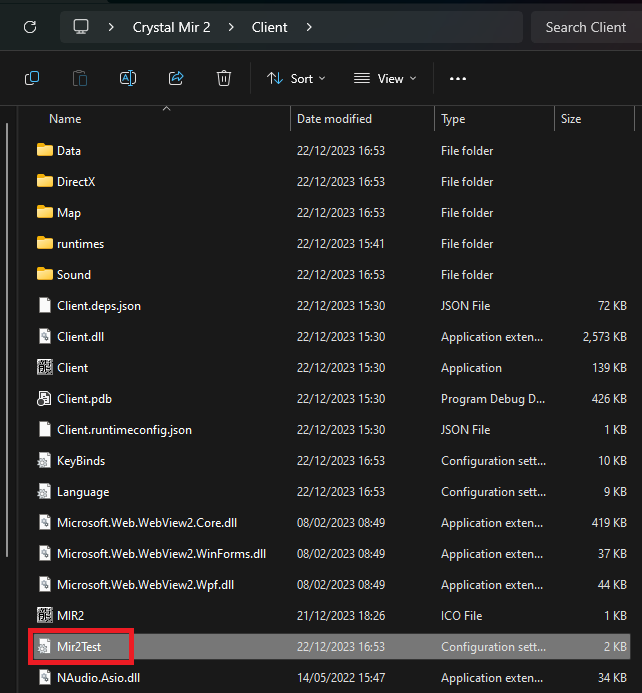
Change
[Network]
UseConfig=False
To
[Network]
UseConfig=True
IPAddress=127.0.0.1
Port=7000
Note: For a local Server you do not need to adjust any Server IP as this is defaulted to 127.0.0.1
Now Launch your Server and Client!
Step 9
Admin account creation
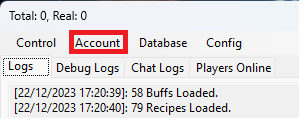
When your server is fully loaded Press Account
Now Press Create
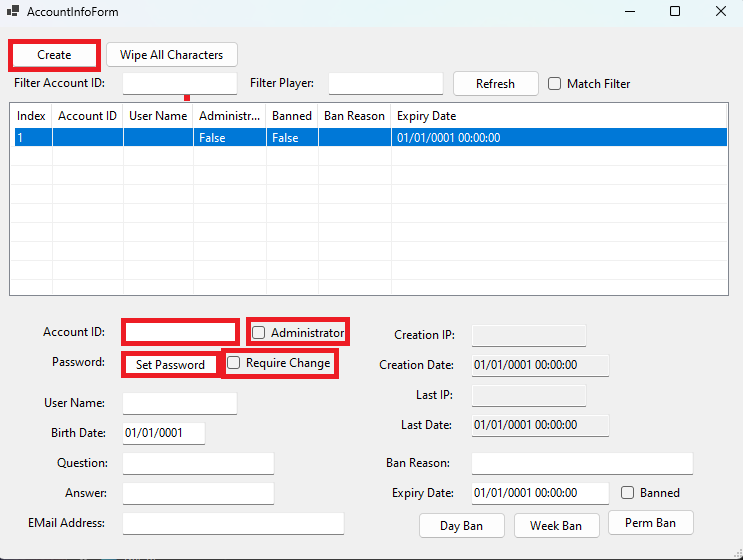
Give your account an ID & Set a password
Now Uncheck Require Change & Check Administrator
