
Basic Operation
Move
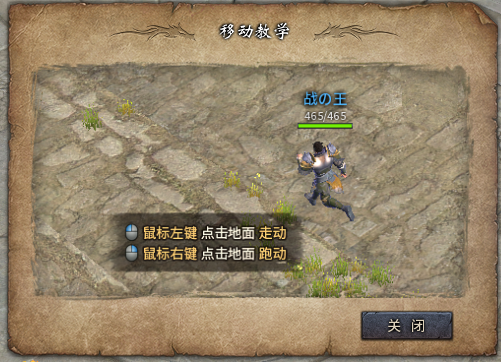
1. Click the ground with the left mouse button and the character will start walking;
2. Right-click the ground and the character will start running.
Attack
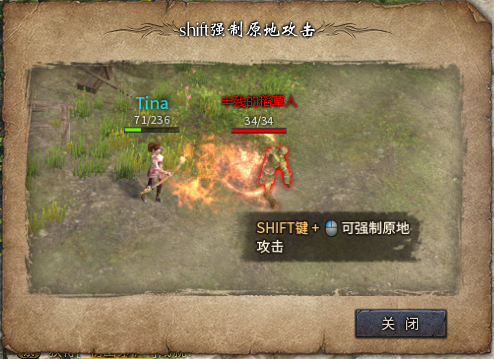
1. Click the left mouse button to perform normal attacks;
2. Use the digital shortcut keys to release the corresponding skills to attack;
3. Shift key + left mouse button can force attack on the spot.
Adjust the viewing angle
Use the mouse wheel to zoom in or out.
Picking up items
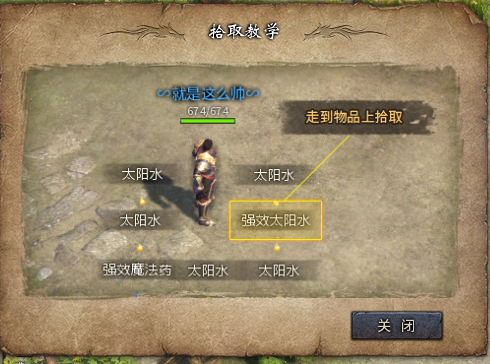
1. Click on the item with the left mouse button to pick it up;
2. Walk up to the item and pick it up;
3. You can use F12 to open the auxiliary settings and set the items that need to be automatically picked up. (For details, please refer to the introduction of the game auxiliary settings system)
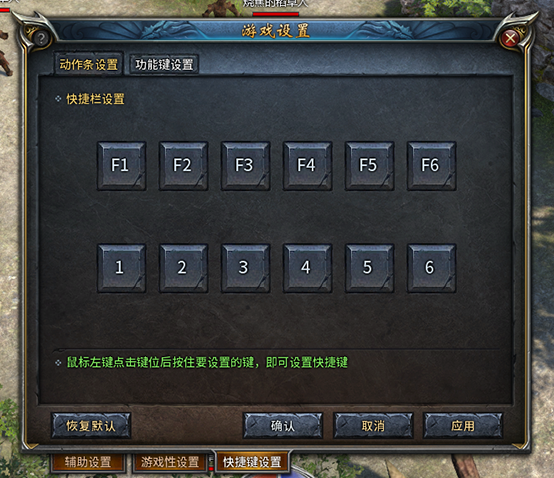
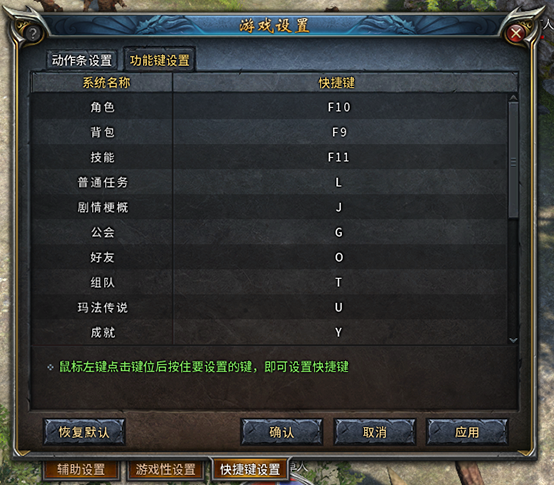
Shortcut key settings
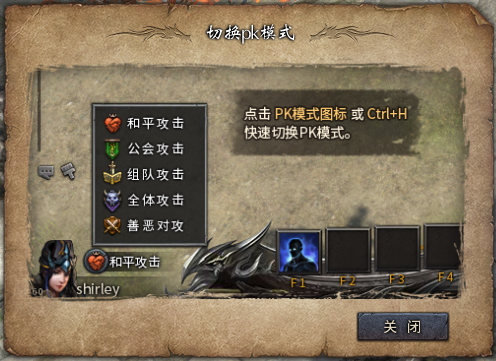
Switching Mode
Use Items
1. Open the package and right-click the item to use it;
2. Drag the item to the shortcut bar below the character's main interface, click the shortcut bar with the left mouse button or press the shortcut key to use it.
Discarded items
Click the item with the left mouse button and drag it out of the backpack interface to discard it.
Wearing equipment
1. Open the package and right-click the equipment icon to wear it;
2. Or press C to open the character information interface, hold down the left mouse button to drag the equipment to the corresponding equipment column and release it to equip it.
Talk To NPCs
Just click on the NPC with the left mouse button.
Accept the task
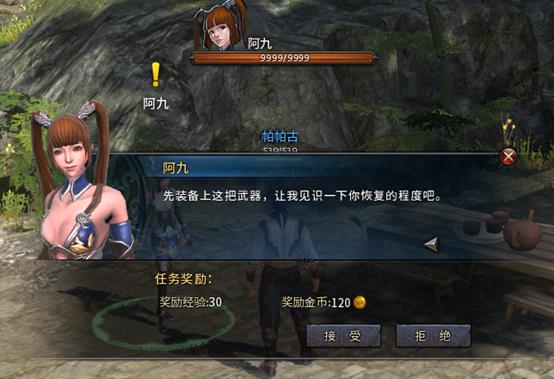
Talk to the NPC with an "!" above his head and select the corresponding task in the dialog box.
Complete the task
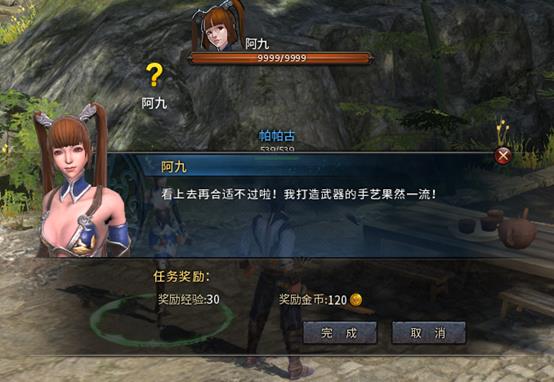
Talk to the NPC with a "?" prompt above his head, select the corresponding task in the dialog box, and then click "Finish".
Urgent Tasks
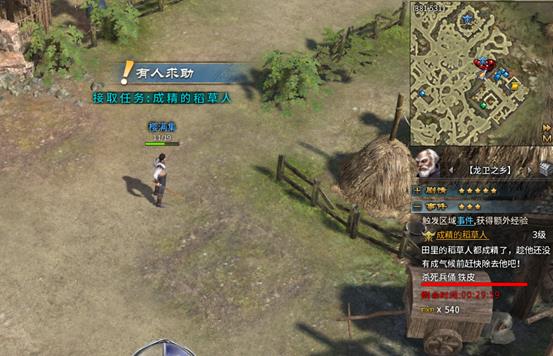
Emergency missions require entering a specific area to be accepted, and will be automatically completed once the conditions are met. (Please refer to the task system introduction for details)
Collection
Add friends
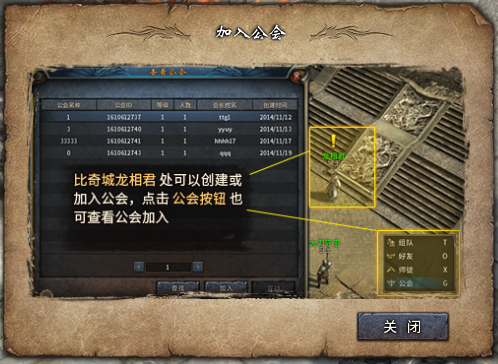
Join a Guild