
Help Image Tag What's the usage
- Thread starter kungreat
- Start date

You are using an out of date browser. It may not display this or other websites correctly.
You should upgrade or use an alternative browser.
You should upgrade or use an alternative browser.

Solution

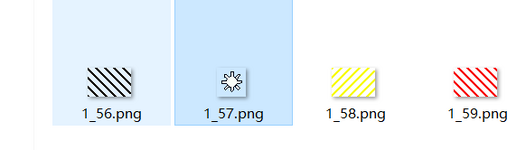
The first one with black lines
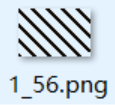 is a 'Front layer tag' (usually called just a Front tag) for an image strip of the width 48 pixels and variable height of two or more small tiles (basic tile size for middle and front layers is smTile (small Tile) 48x32 pixels). Because Mir2 maps have historically all objects placed on the maps Front layer, these tags came to be called Front tags. Even if these image strips can now also be placed on Middle layer, they are still called Front tags.

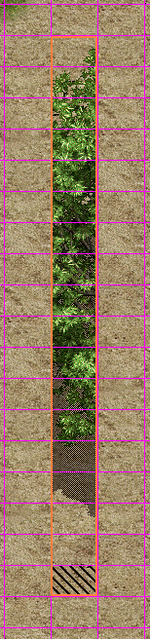
 Example of the image strip with its tag, second picture with the smTile tile grid shown (Ctrl-G). This image strip is 18 tiles tall, so 18x32=576 pixels tall. Tag tile...
is a 'Front layer tag' (usually called just a Front tag) for an image strip of the width 48 pixels and variable height of two or more small tiles (basic tile size for middle and front layers is smTile (small Tile) 48x32 pixels). Because Mir2 maps have historically all objects placed on the maps Front layer, these tags came to be called Front tags. Even if these image strips can now also be placed on Middle layer, they are still called Front tags.
Example of the image strip with its tag, second picture with the smTile tile grid shown (Ctrl-G). This image strip is 18 tiles tall, so 18x32=576 pixels tall. Tag tile...







- Feb 21, 2013
- 3,595
- 2
- 681
- 265
The first one with black lines
is a 'Front layer tag' (usually called just a Front tag) for an image strip of the width 48 pixels and variable height of two or more small tiles (basic tile size for middle and front layers is smTile (small Tile) 48x32 pixels). Because Mir2 maps have historically all objects placed on the maps Front layer, these tags came to be called Front tags. Even if these image strips can now also be placed on Middle layer, they are still called Front tags.
Example of the image strip with its tag, second picture with the smTile tile grid shown (Ctrl-G). This image strip is 18 tiles tall, so 18x32=576 pixels tall. Tag tile and the tile just above it are completely transparent, others are partly transparent as seen in the third image with hidden back layer tiles.
Objects on map, like cliffs, buildings, trees and even smaller items (if taller than a single tile) are all assembled from these image strips (high buildings sometimes have two strips stacked because there are technical limits to how tall those strips should be).
These image strips consist of integral count of those small tiles stacked up and if the image doesn't quite fill the last top tile, the rest of it is made transparent (many image strips also have transparent several bottom tiles with the actual image starting higher up, typically tree objects).
The first tile (the bottom one) of each strip is tagged and unlike those other tags shown here, they are not placed on those image strips, they come with them. You can display them in the map editor (shortcut F10 toggles their visibility on/off). The bottom tile marked up with this tag is where the image strip is 'grounded' so to speak.
In the game, if you stand on this bottom tagged tile, you appear in front of the image strip (like in front of a tree) but if you make one step 'up' on the map (provided there is no obstacle in your way), you appear behind the image strip as if it is semitransparent (but really the avatar is drawn to appear that way). It is like if you cut a tree shape from a paper and leave a bit of paper (one tile in size) below the trunk which you bend forward in order to glue it down on a ground - the part glued down would be a tile that is tagged, the rest of the image strip is vertical relative to the ground and you can go behind it (except in game, you need to see where you are all the time, so it is made semitransparent.
Now finally we get to the meat.
The tagged tile with its image strip is placed on the map where you mouse click on it, shortcut '1' places it on Front layer, '2' on the Middle layer. To delete that strip, select the shortcut '7' or '8' (depending which layer the tag is on) and mouse click on the tag (again, to see those tags, use shortcut F10 & F11).
The last thing to wrap it all up is that to give a visual clue on which layer the tag is placed, the tags on the Front layer have black lines and those on the Middle layer have them hot pink color (shortcut to display those pink Middle layer tags is F11). But both colors refer to the 'Front tag'. The word front can be thought of not as referring to a map layer, but to the fact, that you always see only the front of any object on maps...
 The pink color of those Middle layer tags is due to that tile being already among the default WemadeMir2 smTiles, ie, the library didn't need to be made custom as it would be if a new tile was added to it.
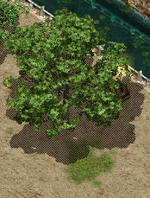 Typically these grass patches are placed on the Middle layer and this particular example from existing Bichon Wall map also illustrates the need for the use of both the Front and Middle map layers.
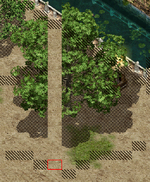 Here the Front layer tags are toggled on (F10) and one tag was deleted (shortcut 7 and click on the tag - the tag spot is marked red) to show a single image strip from which the tree is made up (total of ten tags of ten image strips).
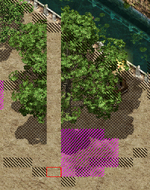 Shortcut F11 displays pink tags of the grass patch on Middle layer. Note that some of these grass patch pink tags overlay the black tags of the tree image strips. There can be only one tag on a given map tile layer. If that grass patch was placed where it is but on the Front layer, it would delete three tile strips of that tree. Placing a tag over another one on the same layer deletes the one already there.
That is why maps have two layers on which objects can be placed (objects are assemblages of tile strips). It makes it possible to put a tree close to a building or to have a grass patch next to a tree as in this example.
==========================================
The next tag that logically follows next is this yellow lined one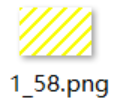
This is a 'No walk' tag, also called 'Low wall' tag (more on the 'Low wall' later), it is placed on map areas where player avatar will not be able to move to, walk or teleport on. It is used to mark up water expanses and tree trunks and building walls, in short where the player shouldn't be able to walk. These tags are placed on maps at your discretion and like the Front tags, are not visible in game.
The red tag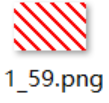 has the same 'No walk' function as the yellow one, where it is different is when it comes to that 'wall' attribute. Red tag is a 'High wall' tag as opposed to that yellow 'Low wall' tag. It was intended to have a special property preventing player character to shoot a projectile, like an arrow, through it, but that function was never implemented. Only some special skill effects that come 'down from the sky', like Wizard's Tbolt, work across this tag. The yellow tag allows all projectile shots to pass over it. Normally the red tag would be used at the base of tree trunks because you are not supposed to be able to shoot fireball through such obstacle but a low bush would be only yellow tagged because you fireball can pass over it. Same for the building walls which should be tagged red etc.
Typically you mark up map with those yellow No walk tags and then add the red tags on top of the yellow ones where the object is considered 'High wall', where you shouldn't be able to send a projectile through.
However since the High wall function is not implemented in Mir client, its red tags are placed on maps with an eye to the future, if it should be implemented one day. Placing them is what you would call a future proofing maps, a good policy to follow when making new maps.
==========================================
Light tags are placed where torches or city lamps or fires are in order for the flame graphic image to actually give off light
You display these tags by shortcut Ctrl-L. To place a light, use shortcut 4 and click on map to give a tile a red outline, then use shortcut L to open a panel where you enter the light intensity value 1-9, zero value removes already existing light tag.
Light tags are also used to mark up fishing areas, the light values for fishing are 100-119. These 'light' values do not give off any light in the game, it is just that when fishing was added in as a feature, these light tags were handy to use as markup tags for that.
Use shortcut '4' and click and drag to select a larger tile area and then you can use shortcut 'L' to place the fishing tags on the whole selected area.
Again, to remove large light tag areas, select the area and in the light setting panel, enter 0 and the tags will be erased. Can also use UnDo if the tags have been just placed...
Uff
is a 'Front layer tag' (usually called just a Front tag) for an image strip of the width 48 pixels and variable height of two or more small tiles (basic tile size for middle and front layers is smTile (small Tile) 48x32 pixels). Because Mir2 maps have historically all objects placed on the maps Front layer, these tags came to be called Front tags. Even if these image strips can now also be placed on Middle layer, they are still called Front tags.
Example of the image strip with its tag, second picture with the smTile tile grid shown (Ctrl-G). This image strip is 18 tiles tall, so 18x32=576 pixels tall. Tag tile and the tile just above it are completely transparent, others are partly transparent as seen in the third image with hidden back layer tiles.Objects on map, like cliffs, buildings, trees and even smaller items (if taller than a single tile) are all assembled from these image strips (high buildings sometimes have two strips stacked because there are technical limits to how tall those strips should be).
These image strips consist of integral count of those small tiles stacked up and if the image doesn't quite fill the last top tile, the rest of it is made transparent (many image strips also have transparent several bottom tiles with the actual image starting higher up, typically tree objects).
The first tile (the bottom one) of each strip is tagged and unlike those other tags shown here, they are not placed on those image strips, they come with them. You can display them in the map editor (shortcut F10 toggles their visibility on/off). The bottom tile marked up with this tag is where the image strip is 'grounded' so to speak.
In the game, if you stand on this bottom tagged tile, you appear in front of the image strip (like in front of a tree) but if you make one step 'up' on the map (provided there is no obstacle in your way), you appear behind the image strip as if it is semitransparent (but really the avatar is drawn to appear that way). It is like if you cut a tree shape from a paper and leave a bit of paper (one tile in size) below the trunk which you bend forward in order to glue it down on a ground - the part glued down would be a tile that is tagged, the rest of the image strip is vertical relative to the ground and you can go behind it (except in game, you need to see where you are all the time, so it is made semitransparent.
Now finally we get to the meat.
The tagged tile with its image strip is placed on the map where you mouse click on it, shortcut '1' places it on Front layer, '2' on the Middle layer. To delete that strip, select the shortcut '7' or '8' (depending which layer the tag is on) and mouse click on the tag (again, to see those tags, use shortcut F10 & F11).
The last thing to wrap it all up is that to give a visual clue on which layer the tag is placed, the tags on the Front layer have black lines and those on the Middle layer have them hot pink color (shortcut to display those pink Middle layer tags is F11). But both colors refer to the 'Front tag'. The word front can be thought of not as referring to a map layer, but to the fact, that you always see only the front of any object on maps...
The pink color of those Middle layer tags is due to that tile being already among the default WemadeMir2 smTiles, ie, the library didn't need to be made custom as it would be if a new tile was added to it.
Typically these grass patches are placed on the Middle layer and this particular example from existing Bichon Wall map also illustrates the need for the use of both the Front and Middle map layers.
Here the Front layer tags are toggled on (F10) and one tag was deleted (shortcut 7 and click on the tag - the tag spot is marked red) to show a single image strip from which the tree is made up (total of ten tags of ten image strips).
Shortcut F11 displays pink tags of the grass patch on Middle layer. Note that some of these grass patch pink tags overlay the black tags of the tree image strips. There can be only one tag on a given map tile layer. If that grass patch was placed where it is but on the Front layer, it would delete three tile strips of that tree. Placing a tag over another one on the same layer deletes the one already there.That is why maps have two layers on which objects can be placed (objects are assemblages of tile strips). It makes it possible to put a tree close to a building or to have a grass patch next to a tree as in this example.
==========================================
The next tag that logically follows next is this yellow lined one
This is a 'No walk' tag, also called 'Low wall' tag (more on the 'Low wall' later), it is placed on map areas where player avatar will not be able to move to, walk or teleport on. It is used to mark up water expanses and tree trunks and building walls, in short where the player shouldn't be able to walk. These tags are placed on maps at your discretion and like the Front tags, are not visible in game.
The red tag
has the same 'No walk' function as the yellow one, where it is different is when it comes to that 'wall' attribute. Red tag is a 'High wall' tag as opposed to that yellow 'Low wall' tag. It was intended to have a special property preventing player character to shoot a projectile, like an arrow, through it, but that function was never implemented. Only some special skill effects that come 'down from the sky', like Wizard's Tbolt, work across this tag. The yellow tag allows all projectile shots to pass over it. Normally the red tag would be used at the base of tree trunks because you are not supposed to be able to shoot fireball through such obstacle but a low bush would be only yellow tagged because you fireball can pass over it. Same for the building walls which should be tagged red etc.Typically you mark up map with those yellow No walk tags and then add the red tags on top of the yellow ones where the object is considered 'High wall', where you shouldn't be able to send a projectile through.
However since the High wall function is not implemented in Mir client, its red tags are placed on maps with an eye to the future, if it should be implemented one day. Placing them is what you would call a future proofing maps, a good policy to follow when making new maps.
==========================================
Light tags
are placed where torches or city lamps or fires are in order for the flame graphic image to actually give off light You display these tags by shortcut Ctrl-L. To place a light, use shortcut 4 and click on map to give a tile a red outline, then use shortcut L to open a panel where you enter the light intensity value 1-9, zero value removes already existing light tag.
Light tags are also used to mark up fishing areas, the light values for fishing are 100-119. These 'light' values do not give off any light in the game, it is just that when fishing was added in as a feature, these light tags were handy to use as markup tags for that.
Use shortcut '4' and click and drag to select a larger tile area and then you can use shortcut 'L' to place the fishing tags on the whole selected area.
Again, to remove large light tag areas, select the area and in the light setting panel, enter 0 and the tags will be erased. Can also use UnDo if the tags have been just placed...
Uff
Last edited:
Upvote
0
Solution