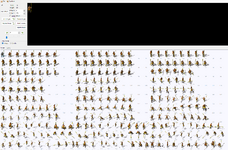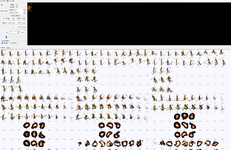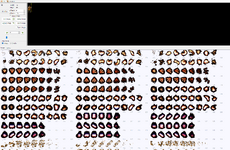

Help Please help me with how to apply monster frames

Play Now

jkys957

LOMCN n00bie
May 19, 2025
3
0
1
Hello.
I am trying to activate the Kunlun hunting grounds.
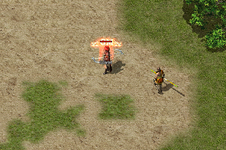
But when I summon the monsters, the movement flickers and the moving frames do not seem to be normal.

I found the 400 series lib files for each monster and checked the Frame.cs code on the client side,
but I have no concept of these frames and do not know how to apply them.
I want to know how to apply the Kunlun monster frames, such as MysteriousMonk, NobleWarrior, Swain..

The picture shows MysteriousMonk dead, but it looks like he's standing.
When he attacks, he only has a walking motion.
 

Attachments

  • screenshot 2025-06-05 204419.png
    screenshot 2025-06-05 204419.png
    464 KB · Views: 25

jkys957

LOMCN n00bie
May 19, 2025
3
0
1
Frames tab in lib editor

Thanks for the answer, Bro.

I'm working on MysteriousMonk in lib editor and summoned it in game.
The flickering in monster motion is gone and attack1 works fine.
The problem is that only attack1 works, there is no effect, and I checked that attack2 and attack3 do not work.

This simple UI is good, but I don't have a precise knowledge of how to work.
I think monsters or BOSS with independent effects are probably not simple to work with. And I don't know exactly what skip, reverse, blend mean.

Can you explain how to work with the numbers in the Frames tab?
 

Attachments

  • 1.png
    1.png
    1.1 MB · Views: 12
  • 2.png
    2.png
    900.6 KB · Views: 12
  • 3.png
    3.png
    1.2 MB · Views: 9
  • 4.png
    4.png
    136.9 KB · Views: 12
Upvote 0

Akaras

LOMCN Developer
Developer
Jan 14, 2014
753
293
255
I've not imported custom new monsters since they were originally added (before the frames tab was added) so I might be wrong but as far as I know a new monster will be added as default with just the standard movement, attack1, and die frames... to get it to use different frames you need to edit the client code to either get it to use another previously added monsters code or write new specific code for the new actions

  • Action: a name that links the frame data to the client code
  • Start: the starting frame of the animation (action) ... in your first screenshot "Standing" action would start at 0 and "Walking" would start at 80
  • Count: how many frames per direction... in your screenshot "Standing" is 8 and "Walking" is like 6
  • Skip: how many blank frames inbetween the frames... in your example Standing is 2 and walking is 4
  • Interval: this is the speed it plays the animation it varies depending on the action 100 would be faster than a higher number... play around with this but 500 seems good for standing animation
  • Reverse: plays the frames in reverse order
  • Blend: used for images with black background like spell effects and such
  • EffectStart, EffectCount etc... I'm guessing those are used for effects that are added onto monsters like glows... I'm not sure how these work if you can hame more than one effect per frame etc...
Its best to just play around with it in the library editor and click the play button next to the Action and it will preview the animation to see if you have it correct... remember to save it of course
 
Last edited:
Upvote 0

Yasuto

LOMCN n00bie
May 20, 2025
3
3
4
I've not imported custom new monsters since they were originally added (before the frames tab was added) so I might be wrong but as far as I know a new monster will be added as default with just the standard movement, attack1, and die frames... to get it to use different frames you need to edit the client code to either get it to use another previously added monsters code or write new specific code for the new actions

  • Action: a name that links the frame data to the client code
  • Start: the starting frame of the animation (action) ... in your first screenshot "Standing" action would start at 0 and "Walking" would start at 80
  • Count: how many frames per direction... in your screenshot "Standing" is 8 and "Walking" is like 6
  • Skip: how many blank frames inbetween the frames... in your example Standing is 2 and walking is 4
  • Interval: this is the speed it plays the animation it varies depending on the action 100 would be faster than a higher number... play around with this but 500 seems good for standing animation
  • Reverse: plays the frames in reverse order
  • Blend: used for images with black background like spell effects and such
  • EffectStart, EffectCount etc... I'm guessing those are used for effects that are added onto monsters like glows... I'm not sure how these work if you can hame more than one effect per frame etc...
Its best to just play around with it in the library editor and click the play button nect to the Action and it will preview the animaiton to see if you have it correct... remember to save it of course
That post should have its own tutorial thread IMO , Well done could never explain it better
 
  • Like
Reactions: Akaras
Upvote 1